 MarKusSXCH TagStudio
 – Manual
English version – Deutsch is the source and may be more up to date.
The complete guide to all features. Overview, pictures and download: start page Pictures with made-up example tracks (German interface).
Up to version 2.8 the program was called “MP3 Tag Compare”. Settings and backups from that time are taken over automatically.
Features at a glance
From find to DJ set: Discover → Ideas → Cart → Purchases → Prepare → Tag → DJ set → Mixes.
- Discover: new releases of followed artists and labels (Deezer, Beatport, optionally Spotify and SonoVault) with preview; keep hits as ideas.
- Prepare: new tracks run from the inbox through freely arranged stages (tag recipe, external program, plugin) into the library – every stage works on a copy.
- Tagger: edit many files together, cover, tags from file name, renaming, track numbers, upper/lower case, search & replace, export to Excel/CSV.
- Editors for every field: multi-line field editor, multiple values as single values, JSON as a tree, XML editor, binary field editor for DJ data (GEOB/PRIV), colour picker for hex colours, clickable links.
- Key: Camelot wheel with harmonically matching keys; notation Camelot (
08A), musical (Am) or Open Key (1m). - Audio features: Energy, Danceability, Happiness … as fields with values 0–100, as columns in the tagger,
sortable and filterable (
energy>=70); files optionally in 0–10 (Lexicon). - DJ set: optimise the order by key (Camelot), BPM and energy, rate every transition, re-order and lock by dragging, path through the Camelot wheel and energy curve; export as M3U8, Rekordbox XML and CSV.
- Ideas: wish lists of tracks you want to buy later – from “Discover”, by hand, from text or from Spotify; status idea → buy → bought → in library, note, preview, as Beatport or Spotify playlist (only on click).
- Cart: collect everything you want to buy in carts – from a copied tracklist (e.g. 1001Tracklists, MixID), by link (Beatport, Spotify, SoundCloud), from your ideas or by hand; recognise and take out tracks already bought, send the shopping list to Beatport as a playlist (only on click); carts are kept as history “open”/“bought”.
- Playlists: collect tracks from the tagger and the DJ set in playlists with folders; every playlist is also stored as M3U8 in the playlist folder (for Engine DJ, VirtualDJ & co.); archive instead of delete.
- Mixes: recognise the tracks of your own library in a mix file (DJ set, radio show) – even with changed tempo – and save them as playlist, CUE file or text; own page, runs locally (plugin).
- Comparing two folders/files: field by field with character-exact highlighting, take over values with an arrow.
- Tag fixer: unify multiple values (
;,/,feat.…) or convert them into real ID3v2.4 multiple values. - Safe saving: automatic backup of the tags before every save, change viewer, byte-exact restore; undo/redo across all files.
- Preview player: listen to tracks with waveform and cue marks (Serato, Mixed In Key), live preview, crossfading with tempo matching, rating and like, second player for pre-listening, can be undocked to a second screen, A/B in the comparison, external players (foobar2000, VLC …).
- Snapshots & change journal: record the tag state of watched folders, detect changes made by other programs and undo them one by one; protection against overwriting changes made elsewhere.
- Origin of the tags: marks which application wrote a field; filter or remove the fields of one application.
- Purchases: match Beatport purchases with the library (bought, in inbox, in library, missing) and download missing ones.
- Cloud: libraries in OneDrive, Google Drive or Dropbox (online-only files are skipped), library mirror as a one-way copy into a cloud folder and backup of the program data (without credentials).
- Plugins: stems (separate vocals, drums, bass …), Beatport, Spotify, SoundCloud, Discogs, MusicBrainz, SonoVault, Lexicon, loudness, Analyse mix, OneDrive/Google Drive/Dropbox …; each updatable on its own, your own plugins are possible; filter by category (online API, shop API, cloud API …).
- Settings in one place – with defaults for the start –, export/import (e.g. Windows ↔ Mac) and reset; updates either official versions only or beta versions too, notice of new versions (at start and every 15 minutes, can be switched off), release notes right in the app.
- Languages: German, English and Zurich German; your own texts can be exported, edited and imported (Settings › Appearance › Language).
Starting the program
| Installed | TagStudio in the Start menu or under Applications |
| Source code Windows | start_windows.bat (or start_web_windows.bat) |
| Source code macOS | start_mac.command (or start_web_mac.command) |
| Terminal | python tagstudio_web.py [left] [right] – with --browser in the browser instead of its own window |
The first, classic interface (tkinter) has been frozen since version 3.0 – see Classic interface at the end.
Installation
With the installer (recommended, no Python needed)
Download the latest version under Releases:
- Windows: run
TagStudio-<version>-Windows-Setup.exe. Installs without administrator rights to%LOCALAPPDATA%\Programs\TagStudio, with a Start menu entry, optional desktop icon and uninstall via “Apps & features”. The installer is not signed – if “Windows protected your PC” appears: More info → Run anyway. - macOS (Apple chip): open
TagStudio-<version>-macOS-Apple-Chip.dmg, drag TagStudio to Applications. From 4.13.0 the app is signed with “Developer ID” and notarised by Apple – it starts without asking. Older versions: close the message on first start, then System Settings → Privacy & Security → “Open Anyway” (details in “Zuerst lesen.txt” in the disk image).
Verify the download (#406, #407): from 4.14.0 the release notes show the SHA-256 checksum and a link to the
VirusTotal report for each installer; SHA256SUMS.txt lists the checksums of all release files. Compare before
running: Windows (PowerShell) Get-FileHash .\TagStudio-<version>-Windows-Setup.exe -Algorithm SHA256, macOS (Terminal)
shasum -a 256 TagStudio-<version>-macOS-Apple-Chip.dmg – the value shown must match exactly. Only then choose “Run
anyway” at the Windows warning. The one-click update checks the checksum itself.
The installed app contains the new interface including plugins (stems sets up its own environment the first time it is installed). Updates: the “Check for update” button opens the releases page; download the new version and install it over the old one – settings, backups and plugin data live in the user folder and are kept.
From the source code (for development and the update button)
- Install Python from https://www.python.org/downloads/ – Windows: tick “Add python.exe to PATH”;
macOS: the installer package contains tkinter (Homebrew Python additionally needs
brew install python-tk). - Get the program – ideally as a Git clone, then the update button works:
git clone https://github.com/MarkusKeller8200/markussxch-tagstudio.git(alternatively download the ZIP from GitHub and unpack it). - Start with a double-click (see table; macOS the first time: right-click → Open).
On first start the new interface installs
pywebview(small, internet needed) and opens its own app window. Without pywebview it opens in the browser (python tagstudio_web.py --browser).
Usage
Sidebar with Purchases, Prepare, Tagger, Tag fixer, Compare, DJ set, Playlists, Snapshots, Backups, Plugins, Settings (Settings › Appearance › Sidebar: show/hide items and set your own order with ↑/↓), at the bottom “Check for update”, release notes, collapse and light/dark. Back: after a jump from the content (e.g. playlist › “Open in the tagger”) “← Back” appears at the top of the sidebar with the target – it returns to the same place (selection, filter, scroll position); likewise Alt+← / Alt+→ (except in Compare) and the mouse buttons back/forward, right-click shows the last stations. Clicks in the sidebar do not count. On start the last used page opens (the tagger on first start). On start the tagger loads the last loaded folder in the background (the app can be used immediately) and restores selection, sorting, filter and scroll position (Settings › Tagger › “Load on start”: last loaded, default folder or nothing). Compare and tagger work on the same files – changes are visible in both, are saved together (Ctrl/Cmd+S) and can be undone together. The app window opens with the size and position of last time (maximised too).
Tagger
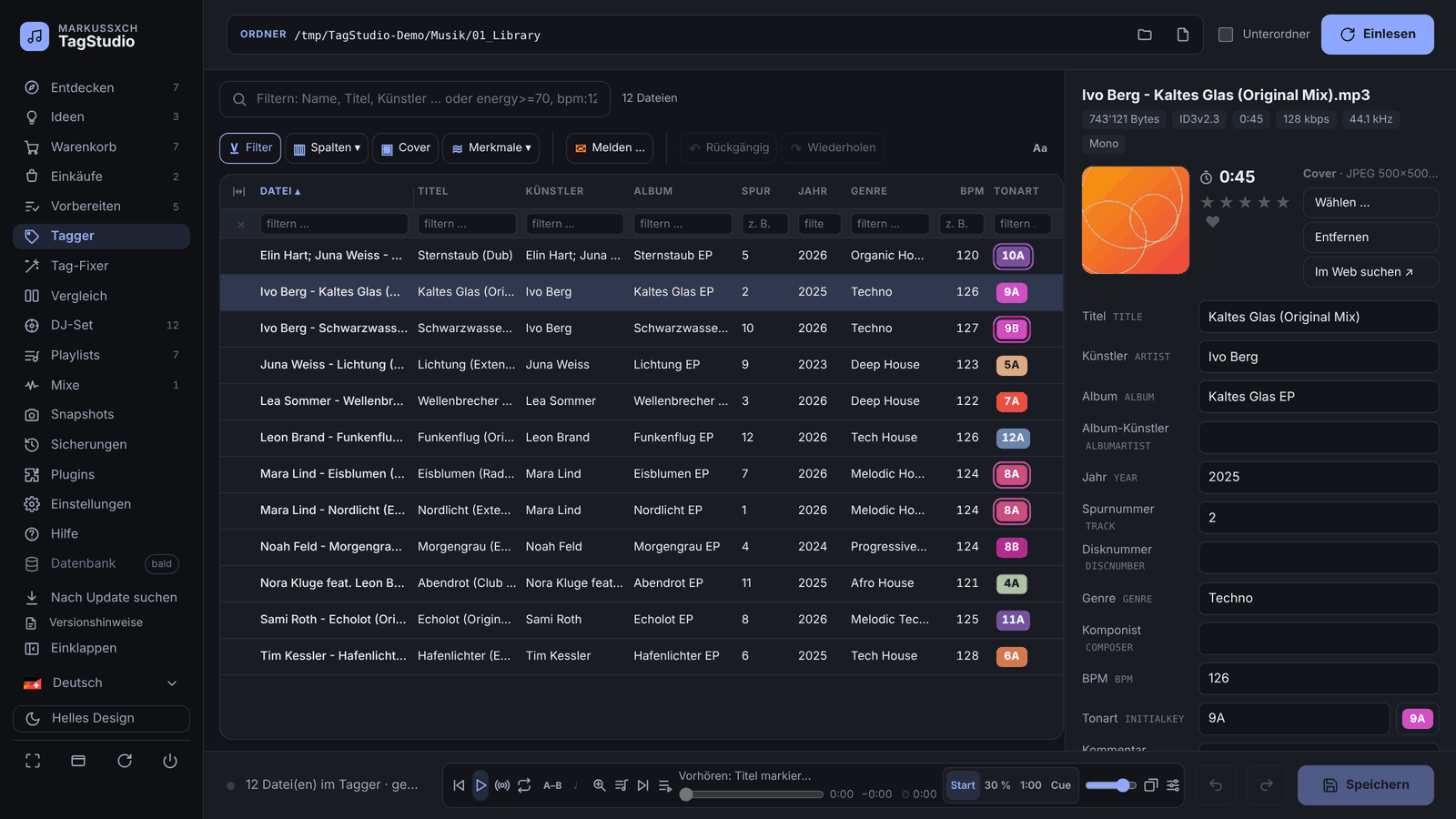
- Back quickly: a folder that was already read appears immediately from the list cache; TagStudio then checks every track in the background via a hash of its tags and re-reads what has changed (progress in the status line). On app start the tagger shows the last displayed list immediately (view only, note “being checked in the background …”) and replaces it once reading is done – changes are reported in the status line.
- List: read a folder or file; optionally with a cover column (“Cover” button); columns file, title, artist, album, track, year, genre, key – sortable with a click, filterable. Select with click, Shift, Ctrl/Cmd, Ctrl/Cmd+A.
- Columns ▾: more columns (album artist, disc, composer, comment, length, kbit/s, rating, ID3 version, label,
catalogue number, remixer, ISRC … or any field such as
TXXX:LABEL), order by dragging in the header, “Fit to window” or “Optimal width” with horizontal scrolling (if the columns don't fit, the list switches to horizontal scrolling by itself; the first column stays at the left). Sort in up to three levels (Shift+click on more columns), “↺ Sorting” resets to the default; “Current sorting as default” and “Save view as preferred” (also under Settings › Tagger). - Editing: on the right the standard fields of the selected files. With several files “‹mixed›” shows different values – they stay unchanged until you enter something. Set/remove the cover, choose the ID3 version (v2.3/v2.4). If a field contains a web address (e.g. comment), a link button appears next to it.
- Tools (all with preview):
- Tags from file name – patterns like
%track% - %artist% - %title%,%dummy%skips a part. - Rename files – from tags; invalid characters →
_, collisions are detected (immediately, not via “Save”). - Track numbers – in list order, optionally with total (3/12).
- Upper/lower case – title case, sentence case, UPPER, lower; abbreviations such as DJ/AC/DC are kept.
- Search & replace – across all selected files, selectable fields, whole words, regular expressions.
- Cover from folder –
cover/folder/front/album.jpg|pngin the file's folder, otherwise the largest image. - Export list – Excel (.xlsx) or CSV with semicolons, including Camelot and audio feature columns.
- Add field, Tag fixer, Show in Explorer/Finder.
More fields and editors
With one file selected, “More fields” lists all other tags. The divider between field and value can be dragged
(double-click = default, the width is remembered). Links are clickable, hex colours (fields with “COLOR” in the name,
e.g. #CC0000, 0xFFCC0000) appear as a colour swatch. The pencil button or a double-click opens the
matching editor, ✕ removes the field.
- Field editor: large multi-line text field (comments, lyrics), character/line counter, ‹ › or Alt+↑/↓ move to the previous/next field (and save), Ctrl/Cmd+Enter applies.
- Single values: multiple values (separated by NULL characters/ID3v2.4, semicolon or comma) as a list – add a value (Enter too), remove, re-order; the separator can be changed, e.g. convert “House; Techno” into real ID3v2.4 multiple values.
- Colour picker for hex colours – the notation (prefix, case, alpha) is kept.
- JSON tree (for JSON in text fields and DJ data, e.g. Mixed In Key): key/value pairs as in the XML editor, expandable. Only the values are edited – text, numbers (validated), yes/no as a tick box; only the changed values are replaced in the original text, format and indentation stay exact. Expert mode (tick box, remembered): add entries – in lists e.g. a new cue point as a copy of the last one, in objects new keys with a type –, duplicate (⧉) and remove (✕).
- XML editor (marked XML, in the comparison too): tree (edit attributes and texts directly, expand/collapse, search) and source (coloured, line numbers), continuous validation with error position, Format and Compact. XML inside binary fields can be edited too – only the XML section is replaced.
-
Binary field editor (GEOB/PRIV, e.g. Serato, Mixed In Key): header (description, MIME type and file name or owner) and content – readable text and Base64-encoded text/JSON can be edited directly (encoded the same way again on apply), XML in the XML editor, otherwise a hex view. Only what was edited is changed.
-
Origin: in front of the field name a small badge shows which application wrote the field (e.g. Serato, MIK, MB for MusicBrainz, Beatport, Spotify, Discogs, Traktor, iTunes), tooltip with an explanation. Official ID3 fields (title, artist, BPM, cover …) also show their ID3 version (v2.3/v2.4, can be switched off); user-defined fields (TXXX, GEOB, PRIV …) without a known application are called “unknown”. Text and colour of each badge can be adjusted in the settings and reset. In the comparison too – there the “Origin” button removes the fields of one application on the left, right or both sides. In the tagger filter via “All origins”; “Remove all …” or “Fields by origin …” removes all fields of one application from the selected files (preview, undo).
Programs such as Serato or Mixed In Key expect their own format in their fields. Try changes to DJ data (e.g. new cue points) on a test file first.
Key and Camelot wheel
The button next to the “Key” field opens the wheel (major outside, minor inside). A click sets the key of the
selected files; the current key and the harmonically matching keys (±1, relative key) are highlighted. It is written
either as Camelot (always two digits: 08A, 01B), musical (Am) or Open Key (1m); notations such as
8A, A minor, F♯m, a-Moll or Es-Dur are recognised too. “Unify notation” rewrites all selected files. The
“Key” column shows coloured Camelot codes (sortable); with one file selected the matching tracks are outlined.
Audio features
Expandable area in the tagger: Energy, Danceability, Happiness, Valence, Acousticness, Instrumentalness, Liveness,
Speechiness, Brightness, Aggressiveness as TXXX:ENERGY … with values 0–100 – with a slider or a number
(0.78 → 78), for one or several files. Other notations (TXXX:Energy) are recognised and unified on change.
Columns and filters: via “Features ▾” in the list, features can be shown as columns (with a small bar) and sorted by clicking the column header. Besides text, the search field understands number filters, several separated by spaces and combinable with text:
| Input | finds |
|---|---|
energy>=70, Energie ≥ 70 |
Energy from 70 |
dance<40, tanz<40 |
Danceability below 40 |
energy:60-80 |
Energy from 60 to 80 |
bpm:120-128, tempo=124 |
BPM range or exactly 124 |
house energy>50 |
text “house” and Energy above 50 |
Names may be abbreviated (ener, dance) or German (Energie, Tanz, Stimmung, Akustik, Sprache …).
Scale: under Settings › Tagger you can set that the values in the files are 0–10 (e.g. from Lexicon). Display and
input stay 0–100; reading multiplies by 10, writing divides by 10.
More formats: WAV, AIFF, FLAC, M4A, OGG (test, 4.16.0)
Under Settings › Backups and saving › More formats (all off by default) you choose which formats the tagger and the comparison load in addition to MP3: WAV, AIFF, FLAC, MP4 / M4A (AAC, ALAC) and OGG Vorbis / Opus (read only). The Format column in the tagger (Columns ▾) shows what a file is. Help › ID3 fields shows under which name each field is stored in each format.
- WAV and AIFF carry a complete ID3 tag in a separate ID3 chunk – the same fields as MP3 (text, custom fields, cover, rating, lyrics, Serato data).
- FLAC and OGG/Opus use Vorbis comments (
TITLE,ARTIST,INITIALKEY…), M4A uses iTunes atoms (©nam,trkn,----:com.apple.iTunes:…). TagStudio translates them into its fields; unchanged fields keep their names and order, unknown fields and Serato data stay unchanged. Fields the format does not have (e.g. rating, binary fields, links) are not written and reported when saving. In M4A, BPM is whole numbers only. FLAC uses the padding in the file (then only the tag area is written); for M4A the references to the audio data are updated. In both cases TagStudio checks before replacing that the audio stays byte-identical. OGG/Opus is read only for now. -
Raw AAC (.aac, #455) has no tag system of its own and is read only (ID3v2 in front or ID3v1 at the end, if present). To keep tags, save the file as M4A: Convert › M4A – AAC repacks
.aacwithout re-encoding (no quality loss; the bitrate does not apply). -
When saving, TagStudio only replaces the ID3 chunk (or appends one). All other parts of the file – audio, RIFF INFO,
bext, cue points, AIFF texts – stay byte-identical; the checksum of the audio data is compared before and after, otherwise nothing is saved. Backups and “Restore” work as with MP3. - If a WAV file only has an INFO block (or an AIFF file only NAME/AUTH), those fields are shown; saving then writes a new ID3 chunk and leaves INFO unchanged.
- WAV files over 4 GB (RF64) and damaged files are not saved. WAV/AIFF have no ID3v1.
- Player (#448, #454): WAV, AIFF, FLAC, M4A and OGG/Opus play in the preview player like MP3 (waveform, seeking;
cues from the ID3 chunk for WAV/AIFF). TagStudio serves AIFF internally as WAV; ALAC (lossless M4A) is converted
once with FFmpeg into a WAV copy in the cache (
~/TagStudio/cache/play, at most 2 GB) on first playback – the files themselves are not changed. Compressed AIFC (e.g. µ-law) is not played. - Convert (#451, #456): right-click on selected tracks › Convert (WAV, AIFF, FLAC, M4A, MP3) … creates a new file in WAV, AIFF, FLAC, M4A – ALAC (lossless), MP3 or M4A – AAC (bitrate selectable, default 320 kbit/s); the source can be any loaded format. Fields that do not exist in the target format are listed in the preview (“will be lost”). Stored either in the export folder (default) or next to the original; the choice is remembered. The original stays unchanged, the tags (cover, rating, custom fields, Serato data) are carried over, existing files are never overwritten. Notes in the dialog: MP3 → WAV/AIFF does not improve quality; WAV/AIFF → MP3 is lossy; Serato cues and beatgrid can shift by a few milliseconds with MP3. Needs FFmpeg (comes with the Stems plug-in or from the search path). Works for MP3 → WAV/AIFF even without the “WAV and AIFF” setting.
- Other areas (prepare, purchases, playlists, snapshots) still work with MP3 only for now.
Prepare and discover


Workflow: new tracks run from the inbox folder through freely configurable steps into the library – every stage works on a copy, the raw data stays unchanged. Step types: tag recipe, external program (detect completion via the origin or confirm it), plugin (e.g. loudness, online metadata – “fill empty fields only”), check required fields, takeover with duplicate check and downstream programs as status. The protection rule “only complete” reports (or reverts) when a program changes existing tags. Sources are the download folders of the shops; “Collect” copies new MP3s (from ZIPs too) into the inbox.
Discover is a page of its own, at the top of the sidebar by default (the number next to it = new suggestions); “Prepare” only shows the workflow. Under “Follow …” set artists, labels and Beatport genres (or have them suggested from the library); “Search” fetches new releases from Deezer and Beatport, optionally also from Spotify (new singles and albums of followed artists, free, Spotify plugin signed in, #384) and SonoVault (costs credits: 1–2 requests per artist/label; never in the daily search; entries without link, removed after 30 days and never exported). In the list, pre-listen (▶), save as idea ▸ with ☆ (choose a wish list or create one; also via right-click “Save as idea ›”), mark as bought (✓) or hide (✕); “Open” leads to the track's page. Nothing is ever bought automatically. The section Following shows all followed artists, labels and genres (those imported from Beatport marked “BP”): add names directly, remove with ×, “Import from Beatport” and “Similar artists …” (Deezer). Right-click a suggestion: “Follow artist” / “Follow label”. Clear … removes new and hidden suggestions (watch-listed and bought ones stay), optionally searching again. Tracks listed under Purchases are marked “bought” and appear in the filter “Bought”. Tracks that are in a wish list carry “in ideas” and are kept when clearing.
Ideas

The Ideas page (in the sidebar after “Discover”, the number next to it = tracks marked for buying) collects tracks you want to buy later in wish lists. On the left the wish lists (“+” creates one; right-click: rename, turn into playlist, export, archive), on the right the entries with preview (▶), cover, artist, title, label, date, source, status and note (click the note to edit it).
- Add: in “Discover” with ☆ “Save as idea ▸”, here “+ Add ▾” › “Track by hand …” or “Paste list from text …” (one “Artist - Title (Mix)” per line, e.g. from a tracklist). Duplicates (same suggestion, same store ID or same artist + title + mix) are not added again. From SonoVault suggestions only artist, title and mix are taken over.
- Status: 🛒 marks a track for buying, ✕ drops it (stays under “Dropped”, ↺ brings it back). Bought is detected by TagStudio itself via the Purchases list (same Beatport ID or artist + title + mix), In library as soon as a file is linked – automatically when taken over into the library (“Prepare”) or with “Match with library”. Filters: Open, Buy, Bought, In library, Dropped, All.
- Select (check boxes) several entries: set status, move, remove (with confirmation); right-click an entry: status, note, move/copy to another wish list, open at the source, “Search online ›”. “More ▾” › “Undo” reverts the last change.
- As Beatport playlist: creates or extends the wish list in your Beatport account as
TagStudio_WISH_<list>– only on click, only tracks with a Beatport ID (suggestions from Beatport), nothing is bought. “Write playlists to Beatport” must be switched on in the Beatport plugin (as for “Purchases”). - Spotify (#384, Spotify plugin 1.3): “+ Add ▾” › “Save what's playing in Spotify” takes the track currently
playing in Spotify; “Recently played in Spotify …” lists the last (at most 50) tracks to tick. “More ▾” › “As
Spotify playlist …” creates or extends the wish list as a private playlist
TagStudio_WISH_<list>in your Spotify account – only on click, only tracks with a Spotify link, nothing is removed. “Check Spotify library” marks with ♥ in the “Source” column which tracks are already in “Liked Songs” (read only); “Save selected to Spotify library …” saves the selected tracks with a Spotify link there after a confirmation. A one-time new sign-in (Plugins › Spotify › “Sign in …”) asks for the new permissions. - Turn into playlist … creates a normal playlist (without dropped entries); tracks without a file are listed there as a shopping list. Export as Excel or CSV (one or all wish lists).
Wish lists are playlists of the kind “wish list” in the Ideen folder of the playlist store (visible under “Playlists”, not written as M3U8 to the playlist folder). On first opening, the tracks remembered in “Discover” are copied once into the wish list “Gemerkt (Entdecken)”; “Discover” itself stays unchanged. Since 4.14.0 “Discover” no longer has a filter “Watch list” (#409) – remembered tracks appear under “All” (hint “in Ideas”) and on the “Ideas” page.
Cart

The Cart page (in the sidebar between “Ideas” and “Purchases”; the number next to it = tracks on the shopping lists
of open carts) gathers everything that should be bought – so nothing is bought twice. For now the shop is Beatport;
others (iTunes Store …) will follow. On the left the carts in the groups Open, Bought (history) and Archive
(“+” creates a new one – suggested name Warenkorb_YYYY_MM_DD, on the same day _2 …; right-click: rename, close as bought or reopen, export, archive or bring back), on the right the
tracks with artist, title (mix), Beatport match, source, status and note. Filters: Shopping list (still to buy),
Bought, In library, Removed, All.
- Assistant: with a new cart the assistant starts by itself (otherwise the button “Assistant …”) and guides you through everything in five steps: add tracks → search on Beatport → check for purchases → send to Beatport → buy. Every step first shows what will happen; it only runs on your click. “Skip”, “Back” and “Cancel” work at any time.
- Adding tracks (buttons below the header, each with a preview to select and deselect):
- “Paste list …” – paste the copied tracklist (choose the source: instructions and a button to open 1001Tracklists or MixID), one “Artist - Title (Mix)” per line; numbers, timestamps, “w/” and labels in [square brackets] are dropped, “ID - ID” is skipped. If the tracks have timestamps, a line without one – usually the title of the mix (“Nora En Pure - Purified Radio 531 …”) – is deselected in the preview and can be selected if needed. The same preview is used for “List from text” in Ideas and “Paste tracklist” in Playlists.
- “From ideas …” – choose a wish list, open ideas are selected; the Beatport ID and link are taken over and the idea gets the status “Buy”. Also in Ideas itself: select tracks › “Into the cart ▸”.
- “By hand …” – a Beatport link provides the Beatport ID right away.
- “By link …” – link of a playlist, an album/release, a chart or a track from Beatport, Spotify or
SoundCloud; the respective plugin reads the tracks (signed in, read only). Tracks from Beatport already have the
Beatport ID.
Duplicates are not added again. The Source column shows where a track came from – e.g. “List – 1001Tracklists”,
“Link – Spotify”, “Ideas –
” (also in the export and the search). - Search on Beatport …: first shows the tracks without a Beatport ID, then the Beatport search matches them (read only). Sure matches show “✓ ID”; for all uncertain ones a window then opens where you choose the right candidate or “None of them” per track (later also via “uncertain – choose …” in the table). “not found” means not available on Beatport. “More ▾” › “Search uncertain and not found again …”.
- Check for purchases …: first shows what will be checked, then refreshes the purchases at the shop (like “Purchases” › “Refresh”) and matches the tracks against “Purchases” and the library. The status column shows Bought (with purchase date) or In library; afterwards (and via the hint “Remove bought (n) …”) the list of these tracks appears with check boxes – the selected ones are taken off the shopping list. They stay visible under “Removed” (↺ brings them back), “More ▾” › “Undo” reverts the last change. ✕ or “Take off shopping list …” takes tracks off by hand.
- Send to Beatport …: first shows all tracks that will be sent (and which are left out), checks the purchases once
more and creates the shopping list in your Beatport account as the
playlist
TagStudio_CART_<cart>, or brings it to exactly the shopping list – only on click, only tracks with a Beatport ID, never ones already bought. Other playlists stay untouched; “Write playlists in Beatport” must be switched on in the Beatport plugin. The official Beatport API has no cart: afterwards open the playlist on Beatport (“Open playlist on Beatport”), choose “Add all to cart” there and pay on beatport.com. - History: as soon as all tracks of the shopping list are listed under “Purchases”, the cart is automatically bought (with date) and moves to “Bought (history)”. “Close as bought …” also works by hand, “Reopen” makes it editable again (it then only closes by itself again once new tracks are added). Archiving hides a cart, nothing is deleted. Export as Excel or CSV (one or all carts).
The carts are stored in ~/TagStudio/Warenkorb/warenkorb.json and are part of the program data backup (Settings › Cloud).
Concept (German): KONZEPT-WARENKORB.md.
DJ set

Orders tracks so that the transitions fit. Page DJ set in the sidebar (with the number of tracks in the set).
- Get tracks: read a folder in the tagger, then “+ Selected from the tagger” or “+ Whole tagger folder” – or select tracks in the tagger and right-click “Add to DJ set”.
- Configure: energy curve (any, rising, falling, wave), weighting of key, BPM and energy, maximum BPM jump in percent, tracks without key/BPM at the end or planned as neutral.
- Optimise: up to 15 tracks the best order is calculated exactly, above that a very good approximation (usually less than 2 % from the optimum, a few seconds for 200 tracks). “⇄ Before/after” switches between the old and the new order.
Rating: between two tracks the transition is shown with a traffic light, the kind of key change (same, ±1 on the wheel, relative key, energy jump +2/diagonal, jump), the BPM difference (half/double tempo is recognised, ×2 or ½) and a score 0–100. Transitions above the maximum BPM jump get 0. The total score is the average of the transitions, with an energy curve 20 % is the closeness to the target curve. If the ENERGY field is missing, the energy is roughly estimated from the BPM (striped bar).
Adjust by hand: drag rows with the mouse; 🔒 locks a track at its position – “Optimise the rest” then only re-orders the others. Keys: ↑/↓ select, Alt+↑/↓ move, G lock, Del remove, Enter or double-click plays. The player follows the set order (⏮/⏭, “Follow”, crossfade), so transitions can be pre-listened. Rows can also be dragged onto player A or B.
Right: the set's path through the Camelot wheel (start circled) and the curve of energy, target curve and BPM.
Export ▾: M3U8 playlist with absolute or relative paths, Rekordbox XML (in Rekordbox under Preferences › Advanced › rekordbox xml add the file, then the playlist appears in the “rekordbox xml” area and can be imported), CSV for Excel with transition ratings, and write track numbers in set order (preview, can be undone, saved as usual).
TagStudio remembers the set and the options; tracks from another folder stay in the set but appear grey until their folder is loaded in the tagger again.
Playlist ▾ (top): save the set as a playlist (new ones go into the folder “DJ-Sets”, with locks and options) or load any playlist into the set. Duplicate tracks of a playlist are left out – in the set every track appears once.
Playlists

Collect and arrange tracks and make them available to DJ programs. Page Playlists in the sidebar.
- Add tracks: select tracks in the tagger, right-click (or tools › “Playlist ▾”) → “Add to playlist …” – choose an existing one or create a new one with a folder. Ctrl+Shift+P puts the selected tracks into the most recently used playlist. In the DJ set the same works by right-clicking a track. “Search online ›” in the right-click menu (tagger, playlists, DJ set) opens the search at Beatport, Spotify, SoundCloud, Apple Music or YouTube with artist and title – also for entries without a file. If a track is already contained, TagStudio asks: skip or add anyway (duplicates are allowed).
- Manage: on the left the tree with folders (any depth), “Recently used” and search; dragging playlists onto a folder moves them. Right-click: rename (F2), duplicate, move, colour and note, merge with others, archive. On the right the tracks with BPM, key, length and rating – dragging or Alt+↑/↓ re-orders, Del removes (only from the playlist, never the file), double-click plays, dragging tracks onto another playlist in the tree copies them there. Ctrl+Z / Ctrl+Y undo every change.
- Open: “Open in the tagger” loads only the playlist's tracks into the tagger (note “Only playlist loaded” with “Load whole folder”), “Open in the DJ set” into the set. In the tagger, “Playlist ▾ → Show only tracks from a playlist …” shows only its tracks (filter chip, ✕ clears it). “↺ Filter” above the list clears all filters (search, columns, field, playlist) and loads the whole folder again if needed.
- Playlist folder: every playlist is also stored as M3U8 (relative paths) in
03_Playlistsin the base folder, subfolders as in the tree – for reading into Engine DJ, VirtualDJ and other programs. Set it under Settings › Storage and folders. If another program changes a file there or adds a new one, the page reports it (“Changes in the folder …”) – take over, keep or ignore; TagStudio never overwrites anything without asking. - Smartlists (⚡): “+ Smartlist” creates a playlist that fills itself by rules – e.g. “BPM 124–128 and ★ ≥ 4”.
Source: the library (tagger default folder, library from “Prepare” or
01_Library, with list cache), the tracks loaded in the tagger (including unsaved changes) or another playlist. Rules on text, artist, title, album, genre, label, comment, year, BPM, key (also “fits 8A”), rating, like, mood, energy, added/edited (date range or last n days) and origin; “all” or “at least one” must match; sort order (also random) and limit. It is rebuilt when opened (if older than 15 minutes) and with “↻ Refresh”, never in the background; the M3U8 in the playlist folder is written along. A smartlist cannot be changed by hand – “More ▾ → Freeze” turns it into a normal playlist (Ctrl+Z undoes it). - Archive instead of delete: “Archive” puts the playlist into the archive (at the bottom of the tree), its M3U8
moves to
02_Archiv/_Playlists(note in_aussortiert.csv). “Bring back” restores it; deleting permanently is only possible in the archive. Tracks moved to the archive stay in their playlists and are marked “in the archive”. - Play: “▶ Play” starts from the selected track – the player then follows the playlist on other pages too (⏭/⏮, end of track; “▶ playing” in the header). The tracks do not need to be loaded in the tagger. “More ▾ → To the queue” appends the tracks loaded in the tagger; in the queue, “Save as playlist …” stores it as a playlist, and in the player menu “Add the playing track to a playlist …” stores the current track.
- Import ▾: take over M3U/M3U8, Rekordbox XML (with folder tree) or CSV – also lists without files (columns artist, title, mix, ISRC, duration) and Spotify exports (e.g. Exportify CSV). “From Spotify …” (Spotify plugin) offers liked songs, own playlists and saved albums (one playlist per album, #384). “From Serato …”, “From Engine DJ …”, “From VirtualDJ …” and “From Lexicon …” fetch the playlists of these programs (crates, playlists with folders, virtual folders) – the library is looked for in the usual place and on external drives and only read; fetching again updates them. “Paste tracklist …” takes over a copied tracklist from 1001Tracklists, MixID, Beatport etc. (one “Artist - Title” per line) as entries without a file; TagStudio does not fetch any web page. For MixID and 1001Tracklists the dialog shows short instructions with a link (open the mix in your browser, select and copy the tracklist, paste it); timestamps also above 99 minutes (“106:00”). “Recognise from mix …” (with the “Analyse mix” plugin) finds the tracks of your library in a mix file and saves them as a playlist in the folder “Mixe”; “Earlier mix analyses …” leads to the Mixes page (see there).
- More ▾: export as M3U8 (absolute or relative paths), Rekordbox XML or CSV (whole folders as Rekordbox XML with folder tree by right-clicking the folder). “Match with library …” finds the matching track for entries without a file (same ISRC or artist + title + mix = found; “Song - Extended Mix” and “Song (Extended)” count as equal, “Original Mix” and “Remastered” as no mix). A different mix such as radio edit instead of extended mix or only a similar title = unclear with reason and suggestion ★; “Another mix counts as found” picks it directly (extended preferred). It searches the ticked libraries and, if wanted, another folder (“Other folder …”); suggestions ★ are preselected. Right-clicking a folder or “More ▾ › Match all playlists with library …” does this for many playlists at once. When a playlist is fetched again (Spotify, SoundCloud, Lexicon …), links are kept and sure matches are linked right away. “Find missing …” finds moved files by file name (same size preferred). “Export shopping list …” saves everything missing as CSV.
- Prepare: in the step “Take over into the library”, “Add to playlist” (e.g.
New/{Jahr}-{Monat}) puts the taken-over tracks into a playlist; new tracks are also linked automatically to matching entries without a file. - The previously saved DJ set lists are taken over once as playlists on the first start.
Mixes

Recognise the tracks of your library in a mix file (DJ set, radio show, your own mix) – even with changed tempo (±10 %, with and without keylock). Mixes page in the sidebar (after “Playlists”, the number = saved analyses). Runs entirely locally with the “Analyse mix” plugin (own environment with NumPy, SciPy, FFmpeg, about 100 MB – “Install …” under Plugins); nothing is uploaded or downloaded.
- Once “Index library …” (background job, about 0.4 MB per track). Afterwards TagStudio updates the index by itself: new tracks after “Prepare”, at start in the background, moved tracks immediately (Options …).
- “Analyse mix …”: choose the mix file, optionally the known tracklist (one “Artist - Title” per line, ideally with timestamps, also copied straight from YouTube) for comparison; optionally in the background (progress in the footer, then “Open result”).
- Result: all analyses on the left, the tracklist on the right – per track the time (middle of the transition, editable: type the time + Enter, empty = calculate again), tempo and confidence; uncertain matches are highlighted, gaps show as “ID – ID”. ▶ Mix plays the mix from this time, ▶ Track the recognised track at the same position; ✕ discards a wrong match (“Discarded › Restore”).
- Saving: “Save as playlist” creates a playlist in the folder “Mixe” (time · tempo · confidence as a note; saving
again updates it), “Save CUE …” (suggested: next to the mix), “Copy/save text …” (
[12:30] Artist - Title), with a tracklist “Missing ones as ideas” (“Ideas” page). “Delete …” removes only the analysis. - Only tracks in the index are recognised – other tracks stay “ID – ID”. Also reachable via Playlists › Import ▾ “Recognise from mix …” / “Earlier mix analyses …”.
- Recognise gaps online (“MixID light”): “Recognise gaps online …” (all) or “Recognise …” on a gap sends short excerpts (without tags) to a recognition service – currently SonoVault (key and credits or a paid plan needed). In the window choose the excerpt length and the maximum number; the costs are shown below, only the check mark “Confirm costs and upload” starts it. Matches appear with “online · SonoVault” and “not in the library”; “Recognised online as ideas” keeps them in a wish list. Spots already checked are not sent again. For your own use only – do not publish such tracklists.
- Gaps from the tracklist (free): if the analysis has a known tracklist with timestamps (inserted when analysing or later with “Insert tracklist …”), TagStudio fills every gap with the entry whose time lies in it (at most 60 s next to it) – marked “from tracklist”. Only what is left needs online recognition.
- Link with the library: tracks without a file (recognised online or from the tracklist) are linked automatically with the new file after “Prepare” (“linked · SonoVault”), including a saved playlist; by hand with “Match with library”. “Without file as ideas” keeps the rest in a wish list.
- Analyse folder …: all mix files of a folder (optionally with subfolders, already analysed ones skipped) as separate background jobs.
Purchases

Bought tracks from all stores in one place – Beatport for now (sign in to the Beatport plugin). Page Purchases
in the sidebar: table with title, artist, mix, length, key, BPM, catalogue number, store, purchase date (if the store
provides it, otherwise “first seen”) and a link to the store. Drag the edge of a column header to change its width
(double-click: fit to content, ←/→ on the handle; right-click the header row: reset) – TagStudio remembers it, in the
Tag fixer as well. The ⇔ “Best Match” icon above the table (in the Tagger at the left of the table header) spreads the visible columns over the available width by content
(fixed columns like the checkbox stay). Double-click a found purchase to play the file. “↻ Refresh” fetches new purchases and matches
everything with the library: in library, in inbox, unclear or missing. “Download missing” (or the selected
ones) puts the files unchanged into the inbox folder (00_New or the inbox of “Prepare”, changeable under
“Folder …”) – continue from there as usual. Pre-orders are not downloaded. Beatport does not officially offer
downloading. If Beatport refuses the saved access for it, a window “Sign in to download” appears: sign in like on
the website, valid only while TagStudio is running (password and token are not saved), then TagStudio downloads the
tracks again right away; “● Beatport: session …” shows the sign-in, “Sign out” ends it. If that fails too, TagStudio
shows how to download the tracks yourself on Beatport's download page and take them over with “Fetch”.
“Beatport playlists ▾” (only with the setting switched on in the Beatport plugin, off by default):
“Download Tracks …” puts the tracks without a file into playlists TagStudio_DOWNLOAD_<date>_<n> of 100 each – open
the playlist in Beatport and add all to the download; “Playlists per purchase date …” creates or completes
TagStudio_BUY_YYYY_MM_DD (one playlist per date with all tracks); “Clean up …” deletes the download playlists after confirmation. If “Download missing” cannot download a track,
TagStudio releases it for download at Beatport automatically and shows the save location to copy (paste it as the
target in the browser) plus “Open downloads at Beatport”; TagStudio detects the files downloaded in the browser (also ZIP)
on the page itself and links them (“Take over downloads” works by hand too). “Move to library …” moves purchases
“in inbox” into a library (never overwriting) and opens them in the Tagger if you like. “Release for download again …” (also in the
right-click menu) resets the download of the selected or missing purchases at Beatport – they then appear in the
download queue at Beatport (after confirmation, does not need the playlist setting). TagStudio never changes other
playlists. “Strict” matches only when artist, title and mix fit – even with the same ISRC. “Check unclear …” (with selected rows “Check selected …”; clicking an unclear purchase opens it directly,
right-click shows the context menu with “Correct …”) opens a wide correction window per reason: for several matches the candidates with their tags to
choose from, for a different mix the file's title, subtitle and file name to adjust (“Like the purchase”, “Change and
check” – with backup), for a different artist the similarity in percent; “Next ›” jumps to the next unclear purchase.
“Unpack ZIP” (on by default): new ZIP files in the download folder are unpacked when the page opens and when
fetching – audio files only, nothing is overwritten; the ZIP then moves to the subfolder _entpackt (never deleted).
Unfinished downloads and ZIPs with unsafe paths are left alone.
Tag fixer

Unify multiple values – scope (current pair, one side, selected pairs, all files, tagger selection), fields,
detected separators, output (separator or ID3v2.4 multiple values), live preview. Smart Fix (switch at the top: “Multiple values | Smart Fix”) works with recipes: built-in ones (copy only) and your
own (create, edit, delete, export/import as JSON). The built-in recipe “Multiple values with comma” joins values
separated by & or ; with , and removes duplicates – in artists and contributors, genre and mood. The target
separator can be chosen per recipe (default ,; also ID3v2.4 multiple value, “ / ” for v2.3 files). Preview,
selection and undo as in the multiple-value fixer; exceptions apply here too.
“Exceptions …” keeps names containing a separator together
(e.g. “Above & Beyond”, “Eli & Fur”) – per field or field group (artists and contributors, genre, mood), ignoring case
and spaces. The editor suggests values from the loaded tracks that contain a search text (e.g. &), with the number of
tracks: check them, “Take over checked”, save. Existing exceptions are hidden in the suggestions – “Show existing
exceptions” or the eye (○/◉) per entry shows them again, marked. Exceptions are part of the settings export.
In the preview each change can be deselected (checkbox column, Shift-click for ranges,
header = all/none) – “Apply” only runs the checked ones, as one undo step. Separators are shown as code next to
their description – spaces as ␣, the null separator as \0 –, the chosen output separator as well.
Compare

Two folders or files side by side: paths with history, matching by file name, disc + track number, title or order,
subfolders.
- Pair list with status (≠ differences, ≈ unimportant only, = same, ◧/◨ one side only), search in file names and
values, extended filter by field/condition/side, multiple selection and bulk copy.
- Table with character-exact highlighting, arrow buttons per field, all/missing to the left/right, editing by
double-click (Tab = next field, multiple values with ¦), context menu (copy, edit, remove, open link, show in
Explorer/Finder), clickable links, cover preview with a large view, filter all/differences/same, unimportant, empty
fields, field search, + Field.
- Toolbar (#107) in groups as in the classic interface, one colour per group: view (✱ ≠ = ≈ ▣), copy (⇇ ⇤ ⇥ ⇉),
edit (+ field, ⊘ origin, ⟳ reload pair), history (↶ ↷). “Aa” on the right switches between icons with text and
icons only (remembered); every button has a tooltip. With text two rows, icons only one row. The tagger has the
same toolbar: view (⊻ filter, ▥ columns, ▣ cover, ≋ features, ⑂ stems), ↺ reset and ✉ report, ↶/↷ history – with its
own “Aa”.
- Images: right-click a cover: show, replace, export, remove; a click on the empty cover space adds one. (File
dialogs in the app window; in browser mode only on Windows/Linux.)
Preview player and external players
At the bottom in the footer (or at the top, see below) – in tagger and comparison:
- Play the selected track (space bar, ▶ or double-click on the row), ⏮/⏭ jumps to the previous/next track;
while playing the player follows ↑/↓ and plays the next track at the end. Live preview (button with the radio
waves): a single click on a track plays it immediately; without live preview a click does not change the playing
track. ↑/↓ change the track wherever the focus is (except in multi-line, selection and number fields). ←/→
jump bar by bar (four beats, with beatgrid or BPM estimate), Shift+←/→ to the previous/next cue; a click in the
bar jumps.
- Tempo by hand: click on the BPM display → enter a new tempo (50–200 %), Reset = original tempo; applies
only to the playing track, nothing changes in the file. The button next to the title (Show in tagger) switches
to the tagger and selects the playing track.
- Start point via toggle: start, 30 %, 1:00 or first cue – handy for quickly listening through. The volume is
remembered. For tracks with cue points two buttons jump to the previous/next cue.
- Waveform: calculated once on first play and stored in the cache (~/TagStudio/cache/wave, stays valid when
editing tags and renaming); can be switched off in the ⋯ menu or in the settings.
Waveform in the MP3 (#222, Settings › Backups and saving, off by default): when saving, TagStudio also stores it
as its own GEOB “TagStudio Overview” (about 1.6 KB) in the file – it then travels with the file and survives clearing
the cache. Serato fields stay untouched; without a cache the player shows its own waveform first, then Serato's.
- Cue marks from Serato (cues and loops with colour and name) and Mixed In Key above the bar: a click jumps
there, Shift+←/→ to the previous/next cue (jumping back ignores cues within the last four bars). A click on a
loop mark plays the loop repeatedly (another click ends it); hovering over the bar shows the time and cue name.
- Between waveform and start point: key (Camelot badge plus musical and Open Key), BPM, elapsed time,
remaining time (flashes red in the last 30 seconds) and length. Key M mutes.
- Stems: for tracks with stems the button next to the title (or S / Shift+S) switches between the original
and the stems – playback continues at the same position.
- Repeat track (🔁 or R) and A–B loop (“A–B” button or L: set A, set B, clear; Esc clears).
- A/B in the comparison: L/R switches between the left and right file at the same position.
- Rating and like: stars and ♥ next to the title in the player, keys 0–5 (same star again: clear) and F.
The rating is stored in the POPM field (like Windows Media Player, MusicBee, Mp3tag; existing POPM frames are
adjusted, the play counter is kept) and – if present – in TXXX:FMPS_Rating; the like is stored as
{"like":true} in TXXX:TAGSTUDIO. In the tagger the stars are shown next to the length (for several selected
tracks too) and small in the list. Changes can be undone and are written with “Save”.
- Crossfade (Settings → Player or ⋯): at the end of a track crossfade evenly (equal power) into the next track,
1–30 s in 1-second steps (0 = off); the next track starts at the start point, the beginning or the first cue;
optionally already after 15 s … 2 minutes (for quickly listening through). Not with “Repeat track” or a loop.
Match tempo (on by default): during the crossfade the next track plays at the BPM of the current one (pitch is
kept, at most ±10 %, half/double tempo is recognised; no matching without a BPM field) and then glides back to its
own BPM in the set time (immediately … 1 minute).
Latency/phase correction (test feature): Settings → Player → “Next track correction (ms)” or ⋯ → “Latency
correction”: −500 to +500 ms, 0 = off. Plus moves the beats of the next track later, minus earlier. The
setting is saved and applied to all automatic transitions with “On the beat” active and compatible beatgrids. This
is a phase offset, not an actual pause of the next track and not proof of a constant decoder latency.
On the beat (on by default): with a usable beatgrid the phase is aligned to the playing track when the new
(initially muted) track actually starts. “Crossfade on bar boundary” first plans the next bar (4), 8 beats or the
next phrase (16); loading and decoder delays can still shift the actual start. Without a reliable beatgrid only
tempo sync is possible.
- Beatgrid: from Serato (GEOB:Serato BeatGrid), otherwise determined from the audio (with the waveform,
remembered in the cache), as a last resort estimated from the BPM field with the first cue as a beat. “Keep pitch”
(Settings › Player) can be switched off – then the pitch changes with the tempo like on a turntable. The waveform
shows grid lines (bar/phrase stronger, estimated ones paler). Sync in player B brings it to the tempo and – with
a beatgrid – onto the beat of player A. The magnifier shows a high-resolution section around the position with
the Serato grid above and TagStudio's own analysis below.
Metronome during transitions: if the metronome is active for A, it stays tied to the beatgrid of the old track
during an automatic crossfade until it has completely faded out; then it switches to the new grid automatically. It
also stays active when the new grid only becomes available through the audio analysis. Player B stays independent.
Metronome volume: Settings → Player → Metronome volume (0–100 %, default 80 %) or via the player menu for A/B.
Changes take effect immediately during playback. Shared by both players, independent of the track volume. With
headphones start low.
- Player at the top (Settings → Player → Position or the controls menu): its own full-width bar above the page
with a larger waveform; button ˄ or Shift+P collapses it (one row per player with ▶/⏸, title and remaining
time).
- Resume: on start the player loads the last played track (A and B) paused at the same position, if it is in the
loaded tagger folder; can be switched off in Settings › Player. “After restart” selects pause, autoplay or “play if
it was playing when closing”.
- Player B (only with the player at the top, controls menu or settings): a second, independent player below
player A for pre-listening – built the same way (⏮/⏭, cues, repeat, A–B, rating, its own start point and volume,
L/R in the comparison) and with its own output device in the menu (if the system allows it), e.g. headphones.
Right-click a track → “Load in player B” – or simply drag the track (from the tagger, DJ set or a pair from the
comparison) onto player A or B. If a player is playing, the dragged track is loaded paused. A click on the label
A or B at the very front (or key B) sets what selection, space bar, double-click and keys act on.
- Undock (button ⧉): the player – with cover and, if switched on, player B too – appears in its own window, e.g.
on the second screen; playback continues at the same position, selection, ↑/↓ and the space bar in the main window
keep controlling it. Size and position are remembered; closing the window (or “Dock”) brings it back.
- Default settings (Settings → Player): “Save current as default”, “Reset to default” and “After start: last used /
always the default settings”.
- External players (⋯ or Ctrl/Cmd+P): open selected tracks in foobar2000, VLC, Rekordbox, Music …; without
set-up in the system's default program. Under “External players…” any number of programs with arguments ({files}
all files, {file} first, {folder} folder, {m3u} temporary playlist).
- Playback runs through a local mini server (127.0.0.1 only, released files only, random token).
Snapshots & change journal
For libraries that other programs edit too (Mp3tag, beaTunes, Mixed In Key, Platinum Notes, Rekordbox …):
- Watch folders and create snapshots – the tag state of all tracks is recorded byte-exactly, without audio.
Every frame is stored only once; further snapshots only cost what has changed. Snapshots can be named (“Before Mixed
In Key”), pinned (never cleaned up) and deleted.
- Journal: snapshot ↔ now (or two snapshots) – changed, new, removed, renamed tracks and tracks with changed audio;
per track all fields old/new with origin badges and the probable program (e.g. Mixed In Key for key + energy).
Filter by status, program and field, search by title, field or value; “Select visible” selects e.g. all key changes
by Mixed In Key for reverting. ⇄ opens the track in the comparison.
- Revert: tick single fields or whole tracks → “Revert selection” (can be undone, written with “Save”) or “Write
back byte-exactly” (exactly the snapshot state including Serato/cue data, backup first; tracks with changed audio are
skipped).
- Several folders with colour, unique name and path; display name and folder can be changed, the daily snapshot
can be switched off per folder. As long as no folder is watched, TagStudio points this out on start.
- Automation: one snapshot per folder once a day, on start the question with the number of changed tracks (both
can be switched off). Clean-up: 20 automatic ones + one per week for the last 12 weeks (adjustable).
- Storage space per snapshot, per folder and in total; the sum is also shown in the sidebar.
- ⚑ New baseline: set the current state (new snapshot) or an existing snapshot as the new starting point and
delete older snapshots; pinned ones only if explicitly chosen. The baseline is marked and never deleted when
cleaning up.
- Watching while TagStudio runs: every 5 minutes (adjustable) a thrifty look at size and modification time; “n
tracks changed externally” in the footer opens the journal. TagStudio's own saves do not count.
- In the comparison: choose a snapshot on the left or right (📷 next to the path) – read-only, values only go
towards the real files. Matching by “audio content” also finds renamed and moved tracks.
- Change the storage location: the whole store is copied, checked and only then removed at the old location –
e.g. into the MP3 folder (.tagstudio-snapshots) to pass it on with its history. When a folder with such a store
is read, TagStudio offers to use it.
- Log per snapshot job in Logs/snapshots.log: start, end, duration, tracks, errors and storage space.
- Independently of this, TagStudio protects against overwriting changes made elsewhere when saving: it shows what
another program has changed since reading and, if wanted, takes it over together with your own changes.
Backups
All backups with files, status (restorable/same/missing/audio changed) and changed fields. A click opens the change viewer: every field “Before (backup)” and “Now”, marked changed/new/removed, differing characters highlighted; page with ‹ › and restore single files directly. Also restore selected or all (the current state is backed up first), delete a backup, automatic backup on/off, change/open the folder.
Plugins

Page “Plugins”: switch extensions on/off, install missing packages with a button; actions appear in the tagger under “Plugins”. Suggestions from plugins (e.g. Beatport) first appear as a preview with tick boxes.
- Stems: separates tracks into vocals, drums, bass, instrumental … (audio-separator, its own Python environment, variants CPU/DirectML/NVIDIA). Runs in the background: the dialog closes immediately, the footer shows the progress (“Stems: 2 of 7 · 45 %”), a click shows all jobs (cancel, folder, log). Further jobs are queued; on exit you are asked, and the queue is offered for resuming on the next start. In the tagger the stems hang expandable below the original (▸, →/←, toggle button “Stems” for all): edit MP3 stems, listen to FLAC/WAV; “Stems: tags from the original …” copies the tags.
- Beatport: BPM, key, genre, label, catalogue number, ISRC, remixer, cover and more via the official Beatport API with your own API access (fallback: your Beatport login; the password is never stored). The preview shows all delivered fields – identical ones grey, deselected and already filled ones unticked. Your own Beatport playlists are fetched via Playlists › Import ▾ › “From Beatport …” (entries without a file with a link, read only).
- Online metadata: album, date, label, catalogue number, ISRC, genre, cover and more from MusicBrainz (also via AcoustID fingerprint), Deezer, Spotify, iTunes, SoundCloud, Discogs, SonoVault (own key, Free: 1000 requests per month – TagStudio counts along; BPM/key for comparison only, platform IDs display only) and Last.fm. Default: only complete empty fields; per field the first source is preselected, others appear as alternatives. Discogs token, Last.fm and AcoustID keys under Plugins › Online metadata › “Key …” (stored encrypted); “Test connections” checks the services.
- SonoVault also: optionally own fields
TXXX:SONOVAULT_*with origin “SonoVault” (option in online metadata), “Look up release (SonoVault) …” for whole albums/EPs (2 requests per release) and – with a paid plan (Plugins › SonoVault › “Key …” › Plan) – the newest tracks per label and genre in “Discover” plus “Report genre correction to SonoVault …” (only when ticked, status under “My genre suggestions …”). Details in PLUGINS.en.md. - Spotify and SoundCloud (own app at the service): playlists, Liked Songs or likes as playlists with
entries without a file (Playlists › Import ▾), track data with link for online metadata and followed artists for
“Discover”. Spotify additionally (#384, #385): saved albums on import, new releases in “Discover”, “Look up album
(Spotify) …” in the Tagger, own fields
TXXX:SPOTIFY_*(at your own risk – Spotify Developer Terms), ideas from “playing now”/“recently played”, wish list as Spotify playlist and “in your Spotify library” (writes only on your click). SoundCloud read only. Setup in PLUGINS.en.md. - Take over Mixed In Key: key, BPM and energy from the places where Mixed In Key wrote them (comment “10A - Energy 7”, title or artist prefix, grouping, label, TXXX:EnergyLevel) into TKEY, TBPM and ENERGY; remove the prefixes if wanted.
- Take over beaTunes: MOOD_DANCEABILITY, MOOD_ACOUSTIC, MOOD_HAPPY, MOOD_AGGRESSIVE (written into the files by beaTunes) as audio features. Take over Lexicon: danceability, energy, happiness, optionally rating, popularity, color and custom tags via the Lexicon Local API (matched by path or artist + title). Both with matching: if a value in the file was changed since the last takeover, the suggestion is not ticked – TagStudio asks. Lexicon also: open selected tracks and playlists, optionally update paths, add new tracks, write tags back and send playlists (Playlists › More ▾ › “Send to Lexicon …”: creates the playlist in Lexicon, sending again inserts missing tracks at their position and removes nothing; only with writing back switched on, see PLUGINS.en.md).
- Measure loudness: LUFS, true peak, loudness range (EBU R128, FFmpeg) as fields, optionally a levelled copy.
- Analyse mix: recognises the tracks of your library in mix files – use it on the Mixes page (see there), details in PLUGINS.en.md.
- Logs: for every plugin under More … “Open log folder” and “Show log live …” – a separate window that keeps the log up to date; lines of a running operation appear immediately (“running”).
- Your own plugins in
~/TagStudio/Plugins– instructions in PLUGINS.en.md.
Update, layout, keyboard
- Update: “Check for update” at the bottom of the sidebar; TagStudio checks by itself on start and every 15
minutes (dot on the button) and announces a new version with a pop-up (#417: once per version, “Later” = again
at the next start; never while a task runs). “Don't notify me again” in the pop-up or Settings › Updates › “Notify me
about a new version” switches the pop-up off – then only the marker on the button remains. Under Settings › Updates: official versions only or beta versions too. The installed app shows the
new version with its notes and downloads the matching installer. In the source code variant a click fetches the new
version (
git, fast-forward only, only without your own changes in the program folder; with “official only” up to the newest version tag) and restarts; unsaved changes are asked about first. - Window and program: at the very bottom of the sidebar full screen (F11 too), window mode (back from full screen or maximised), restart and quit. On quitting – also via the window's X – “Saving settings …” appears briefly; unsaved changes and running jobs are asked about first. Only one instance ever runs; a second start reports “TagStudio is already running”.
- Release notes: below the update button – what is new in the installed version and, if available, in the newest one; below that “More versions” with all older versions to expand; with a link to GitHub.
- Splitters: sidebar, pair list, table columns, editing area and field name column can be dragged (or with ←/→ on the handle); a double-click resets, everything is remembered. The sidebar can be collapsed.
- Keyboard (complete list: Help › Keyboard): Ctrl/Cmd+S save · Ctrl/Cmd+Z / Ctrl+Y undo/redo · Alt+← / Alt+→ copy selected · Ctrl/Cmd+A select all · space bar play · double-click play · 0–5 rating · F like · B player A/B · Shift+P player bar on/off · ↑/↓ change track (everywhere) · S stem · R repeat · L A–B loop · ←/→ one bar (player) · Shift+←/→ previous/next cue · Shift+F5 re-read pair · Ctrl/Cmd+P external player · →/← expand/collapse stems (tagger list) · F5 re-read · ↑/↓ in lists · Esc closes dialogs.
Settings and data storage
Storage location and folders (folder roles, from 4.10): under Settings › Storage location and folders every
folder is set exactly once – as a role: Inbox · Libraries · Archive · Playlists · Export · Downloads · Work ·
Backup · Snapshots. The default is the base folder (e.g. D:\TagStudio, every folder selection starts there) with
the structure 00_New (new music, subfolder per source) · 01_Library (library) · 02_Archiv (sorted out) ·
03_Playlists (M3U8) · 04_Export (start folder of all exports: every save dialog – tagger list, playlists, DJ set, watch list, journal, settings, workflow, cover – opens there; a missing folder is created) · 90_Download (downloads, subfolder per source) ·
91_Work (stage folders) · 99_Sicherung (Tags, Snapshots). “Change …” switches any role to an own folder
(also on another drive) and back to “Base”; backup and snapshots can stay in the program data as before. There can be
several libraries (each with a name, active/inactive, exactly one main library); overlaps (a library inside
another one, the same folder via another path) are shown and read only once. Active libraries are used by
the purchases comparison, playlist comparison, Discover (“already owned”) and Help › Scan; “Compared with” shows their
names (click → settings), unreachable ones are skipped and named. From two active libraries on the tagger shows the
“Library ▾” selection with “All active” (loads them all together); Prepare takes over into the main library
unless the workflow has its own library folder. The Snapshots switch per library turns the daily snapshot on or off
(existing snapshots stay). Every folder selection (tagger, compare, workflow, purchases, default folders) opens a
drop-down menu with libraries, roles, recently used folders, “Other folder …” and “New folder …”. Subfolder per
source: when a store plugin (e.g. Beatport) is switched on, 90_Download\Beatport and 00_New\Beatport are created,
the workflow gets the source “Beatport” (fetch: download subfolder → inbox subfolder) and purchase downloads go to
90_Download\Beatport; manual downloads belong in 90_Download\_Manuell. The workflow fields inbox, work and library
may stay empty – they then follow the roles (inbox, work, main library). Cloud (OneDrive, Google Drive, Dropbox): roles and
libraries may lie in a folder synchronised by the desktop client – TagStudio detects it (“☁ OneDrive”), additionally
stores the path relative to the sync folder (also valid on a second computer), skips online-only files (“files on
demand”) when reading – nothing downloads unnoticed, can be switched on – and reports conflict copies of the client.
Snapshots, work and backup inside a sync folder get a hint (not recommended). Sync folders and “online-only files” live in their own card Settings › Cloud (#324). Library mirror
(#403): in the same card the music is placed as a one-way copy into a cloud folder (e.g. private OneDrive – the
folder is suggested when “Private” is chosen under Plugins › OneDrive › “Account type …”). TagStudio keeps working only
with the library; nothing is ever changed in the mirror. Layout (#413): default is “path of the library without
drive” – D:\Musik\DJ becomes <OneDrive>\Musik\DJ (macOS: /Volumes/Musik/DJ → <OneDrive>/DJ), and index.json
and playlists go to <OneDrive>/TagStudio/Spiegel; alternatively “one folder per library, named after it”. Below the
layout you see where each library is mirrored. Plugins › OneDrive › “Account type …” › “Create mirror folders”
creates these folders and points the mirror there. Whatever is missing or changed is copied (first as .part,
then renamed). Estimate space … shows music total, already in the mirror, still to copy and the free space on the
drive – you choose plan and storage size. Optional: update automatically after saving and after “Prepare › Take over”,
write playlists as M3U8 with relative paths, set copies “online-only” (Windows). Files no longer in the library are
only reported and deleted after confirmation. The mirror also contains index.json (title, artist, BPM, key,
duration). Program data backup (#402): settings (without credentials), playlists
with ideas/wish lists, purchases, Discover (without SonoVault entries), Prepare, mixes and carts as a ZIP file
TagStudio-Programmdaten_<computer>_<date>.zip into a folder – suggested OneDrive/TagStudio/Sicherung (#415) – manually (“Back up
now”), on exit or daily. Never included: credentials, snapshots, caches, music. More backups than “keep” (default 10)
are deleted only after confirmation. Restore … shows a preview (what is replaced, which settings groups – from
another computer window, path and player settings are not preselected), first backs up the current state
(“vor-Wiederherstellen”) and rewrites paths to music via the libraries for this computer. Sync via the services
(#317, without desktop client): in the same card, in a table (area · service · direction · folder in the service), the roles Playlists and Export as well as parts of the program
data (playlist store, purchases, Discover, settings without credentials) can be synced with a folder on OneDrive (work/school accounts only – for a private OneDrive choose “Private” under
Plugins › OneDrive › “Account type …” and enter the OneDrive folder, #405), Google
Drive or Dropbox (plugins, your own app per service – setup in PLUGINS.en.md; default /TagStudio/<role>), both directions or upload/download
only. Sync now then shows conflicts with both versions (keep this one / take from the service / keep both) and
deleted files – deleting only after confirmation. Music, snapshots, work, cache and credentials are never synced via
the services. “Change …” (also for the base folder) shows what lies in the
previous folder (files, size, free space, same names at the target) and asks Move / Copy / Don't take over – for
libraries “Don't take over” is preselected, with a note that Engine DJ, Lexicon, Rekordbox, Serato and VirtualDJ have
to look for their paths themselves afterwards (TagStudio never changes other databases). Nothing is ever overwritten
(“keep target” or “name (2)”); on the same drive files are renamed, across drives copied, verified with SHA-256 and only
then removed. The job can be cancelled without half files; references in playlists (M3U8 rewritten), purchases,
snapshots, _aussortiert.csv, Prepare, history and queue are updated; log Ordnerwechsel.csv in the export folder; an
old folder that became empty is only deleted after asking. “Create structure …” creates missing folders. On the first start after the update the previous settings are taken
over; if the library was entered differently in different places, TagStudio shows the overview “We found these
folders” to decide (nothing is silently dropped). Concept (German): docs/KONZEPT-ORDNER.md.
TagStudio only backs up tags – back up the music itself to another drive as well. All storage locations at a glance
(German): docs/KONZEPT-SPEICHER.md.

Profiles: under Settings › Profiles another profile can be created – an independent TagStudio instance with its
own settings and data (under ~/TagStudio-Profile/<name>/). An empty profile starts like a fresh installation with the
setup wizard. Plugins, the stems environment and models are shared. It is started via the profile choice on start,
a desktop shortcut or --profil name; the default profile uses ~/.tagstudio.json and ~/TagStudio as before.
The Settings page brings everything together – tiles in the order of the menu, collapsed by default (click the
title to expand/collapse, remembered; “Expand all”/“Collapse all” at the top; each tile keeps its column), jump links at the top that open the tile:
Appearance (theme, key notation, language) · Tagger (default folder, stems; on start: read automatically,
subfolders, sorting, cover column, origin filter) · Tag fixer · Compare (default folder; on start: subfolders,
match by, display, unimportant, empty fields, cover – if the comparison differs, ⌂ “Default” resets it) · Snapshots ·
Backups and saving (ID3 version, backup) · Player · Plugins · Origin of the tags · unimportant fields · Cache ·
Updates · Expert (diagnostics with version, system and paths to copy, view and search the settings file and logs –
credentials hidden; “Show live …” opens a separate window that follows all logs continuously, like for the plugins; “Empty …” empties a log
after confirmation, “Copy” takes only the selection; Development: “Clear logs on exit” – off by default – empties
app.log and app.log.1 on exit, restart and update, optionally the plugin logs too; the first line afterwards says it
was cleared. Switch it off again when reporting a bug; “Downloads per version …” shows how often the installation
files were downloaded per version – Windows, macOS, plugins, each with a running total (“total”, #418), with a history per day from the “Download statistics” workflow). All dialogs can be moved by their title and resized at the corner
(double-click the title: reset). Every “on start” default can also stay “as last used”. Export saves everything as a file
(without credentials), Import takes over chosen areas – paths of another system are not preselected –, Reset
works for single areas or everything. Before import and reset the old file is backed up to ~/TagStudio/Einstellungen.
Language: Settings › Appearance › Language or the drop-down at the bottom of the sidebar (below “Collapse”)
switches between German, English and Zurich German; “Use the operating system language” follows the language of
Windows or macOS and is active on the very first start. Tags in the MP3 files are never translated. “Export texts” saves
all texts as CSV or JSON for your own translation or corrections; “Import texts …” checks the file (unknown texts,
placeholders, HTML) and stores it as your own texts in ~/TagStudio/Sprachen/<language>.json; “Reset own texts”
removes them again. File dialogs (file types, titles) and the window titles of the player and logs follow the chosen
language too.
Settings are stored in ~/.tagstudio.json. Further folders under ~/TagStudio:
| Folder | Content |
|---|---|
Sicherungen |
automatic backups of the tags (one ZIP per save, folder can be changed) |
cache |
cover thumbnails, waveforms (wave) |
Einstellungen |
backups of the settings file before import/reset |
Plugins |
your own plugins |
Plugin-Daten |
e.g. stems environment and models, Beatport token (encrypted on Windows) |
Logs |
app log app.log (start, end, errors, warnings; from 1 MB app.log.1), logs of plugins and installations |
Sprachen |
your own texts per language |
Auftraege.json |
open background jobs (for resuming after a restart) |
Snapshots |
snapshots of watched folders (location adjustable) |
Next to it is ~/.tagstudio.lock: locked as long as TagStudio runs (one instance only).
The unimportant fields ("trivial", placeholder *) and your own origin assignments ("tag_origins") can be edited
in the settings.
Technical details
Real-world test (version 2.5): 1,493 files of a real DJ library (ID3v2.4, Beatport/beaTunes/Mixed In Key/Serato) were read and rewritten on copies, converted between v2.4 and v2.3 and changed one by one – without read errors, without data loss, the audio byte-identical each time.
- Reads ID3v2.2/2.3/2.4 and ID3v1, writes in the existing version (v2.3 for files without a tag).
- Unchanged fields are written back byte-exactly, audio data is never touched. If the tag grows, a temporary file is written and only then swapped in.
- When copying between v2.3 and v2.4, fields are converted correctly (e.g. date TDRC ↔ TYER/TDAT); ID3v2.4 multiple values are joined with “ / ” in v2.3.
- DJ data (GEOB objects such as Serato Markers2, Mixed In Key Key/Energy/CuePoints, PlatinumNotes) is assigned by its description, shown readably and kept unchanged as long as it is not edited deliberately. In the comparison it counts as “unimportant” by default, since cue points/beatgrids belong to exactly one track.
- Tip: try it on a copy of the music before the first real use.
Files
The code and its comments are in German. Overview:
tagstudio_web.py+web/– the app (HTML/CSS/JS in the app window via pywebview, otherwise in the browser);web/i18n.js+web/i18n/translation layer and catalogues,web/tagger.jstagger and editors,web/player.jspreview player,web/settings.jssettings,web/djset.jspage “DJ set”core.py– shared logic: display, character diff, filters, loading, saving, settingssession.py– state and commands of a session; parts insession_*.pyid3tags.py– reading/writing ID3, MPEG info (without external libraries)compare.py,tagger.py,keys.py,features.py,setplan.py,setexport.py– comparison, tagger tools, keys, audio features, DJ set and its exportsi18n.py– language catalogues, plugin texts and your own texts (export/import)plugins.py+plugins/– plugin system (see PLUGINS.en.md)updater.py– updates;version.py– version number (single source)tagstudio.py– classic interface (tkinter, frozen at 3.0)packaging/– installers;.github/– workflows
The complete German list is in README.md.
Development
- Project status and handover (German): docs/PROJEKTSTAND.md,
docs/UEBERGABE.md; concepts per area in
docs/KONZEPT-*.md. - Tests:
python -m unittest discover -s tests -v– with synthetic MP3 files, without extra packages and without network. UI tests in the browser (Playwright/Chromium, ffmpeg):TAGSTUDIO_UI_TESTS=1 python -m unittest discover -s tests -p "test_browser_ui.py" -v. - Translations:
python3 tools/i18n_extract.pylists missing texts per language; the testtests/test_i18n.pymakes sure every interface text has a translation. - Licences and third-party components: docs/third-party.json (shown under Help › Licences).
- Planning: open points as issues, planned versions as milestones.
Versions & releases
Scheme MAJOR.MINOR.PATCH (Semantic Versioning), single source: version.py.
PATCH only bug fixes, MINOR new features (the normal case), MAJOR big breaks, pre-releases such as 3.2.0-beta.1 for
testing. Every change goes into CHANGELOG.md under “Unveröffentlicht” right away; python packaging/release.py X.Y.Z
sets the version, and as soon as the new version number lands on main, GitHub Actions builds, tests and publishes
the installers for Windows and macOS (betas Windows only).
Channels: selectable in the settings – official versions only or beta versions too.
Reporting bugs, ideas, security
- Bugs and wishes: as an issue or directly in the app under Help › Report.
- Improving translations: Settings › Appearance › Language → export, edit and import texts; then “Submit own texts …” (or Help › Report › “Submit translation”) – the changed texts are filled into the GitHub form and shipped after review.
- Contributing: CONTRIBUTING.md; the code of conduct applies.
- Security vulnerabilities please report privately, not publicly – see SECURITY.md.
Classic interface (frozen)
TagStudio's first interface (tagstudio.py, tkinter) is frozen at version 3.0 and no longer developed. It can
compare, copy, edit fields, unify multiple values (tag fixer), back up and restore and has an icon toolbar. Everything
added since (tagger, snapshots, player, plugins …) is only available in the new interface. Start:
start_classic_windows.bat, start_classic_mac.command or python3 tagstudio.py [left] [right]. It uses the same
settings and is German only.
Licence
© 2026 Markus Keller. MarKusSXCH TagStudio is free software: you can redistribute it and/or modify it under the terms of the GNU General Public License, version 3 or (at your option) any later version. The program is distributed in the hope that it will be useful, but without any warranty – details in the licence. Bundled or later installed third-party components (e.g. pywebview, FFmpeg, audio-separator) are under their own licences.